Validating Integration
Validation Checklist
Before proceeding with testing, ensure that the following steps have been completed:
- Adyen Configuration:
- Adyen account is set up and verified.
- API key is generated and configured in VTEX. (See: API Key Configuration)
- Payment methods are enabled and configured in the Adyen account. (See: Configuring Payment Methods)
- VTEX Configuration:
- AdyenV3 payment provider is registered in VTEX. (See: Configuring the Provider)
- Payment methods are configured in VTEX admin. (See: Configuring Payment Methods)
- Payment conditions are set up with the AdyenV3 provider. (See: Configuring the Provider)
- Testing Environment:
- Ensure that you are using a test environment to validate the integration.
- Use test credit card details provided by Adyen for testing purposes.
- Order Processing:
- Place a test order in your VTEX store to verify that the payment process is working correctly.
- Transaction Status:
- Check the transaction status in both VTEX and Adyen admin panels to ensure that the payment is processed successfully.
Testing
- Create a Test Order: Add product(s) to the sopping cart and proceed to checkout in your VTEX store.
- Select one of the Payment Methods configured to use the Adyen provider: During checkout, choose the appropriate payment method.
- Complete the Payment: Process the payment and verify that the transaction is completed successfully.
Checking the Transaction Status
To check the status of the test transaction, follow these steps:
- VTEX Admin Panel: go to
https://{{account}}.myvtex.com/admin/and navigate to the Orders section or search orders in the admin search box.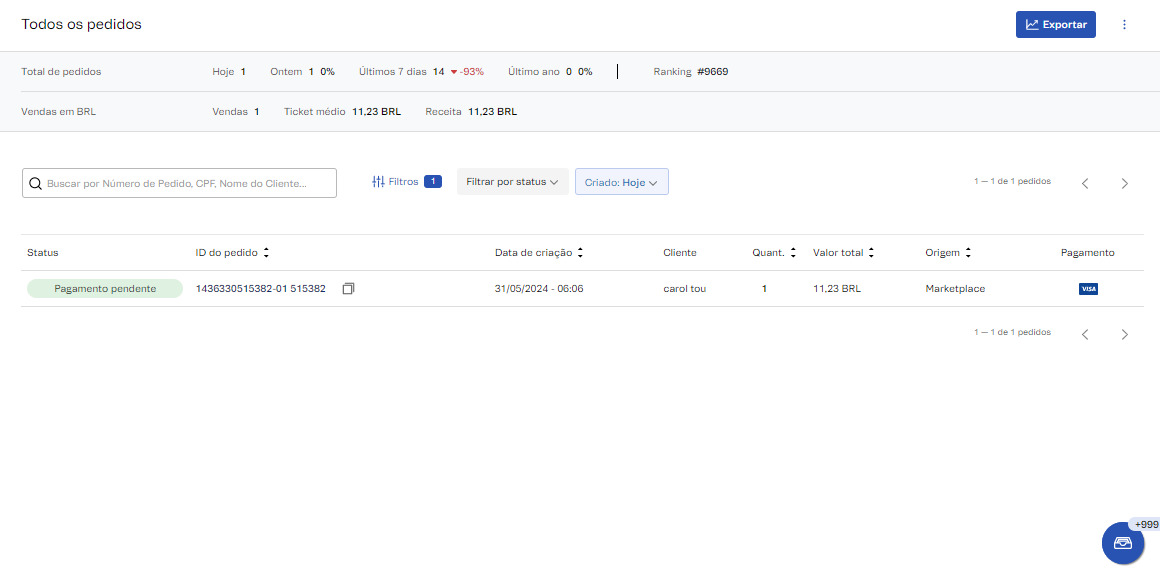
- Order Details: Click on the Order Id to view the details of an Order.
- Payment Status: In the order details, in the right corner, you can see the payment information for that Order.
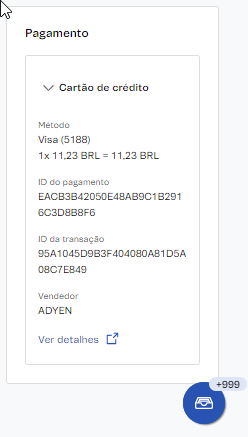
- Transaction History: Click See Details to go to the Transaction Details page. There you can check the details for all the steps of the Payment Processment Flow
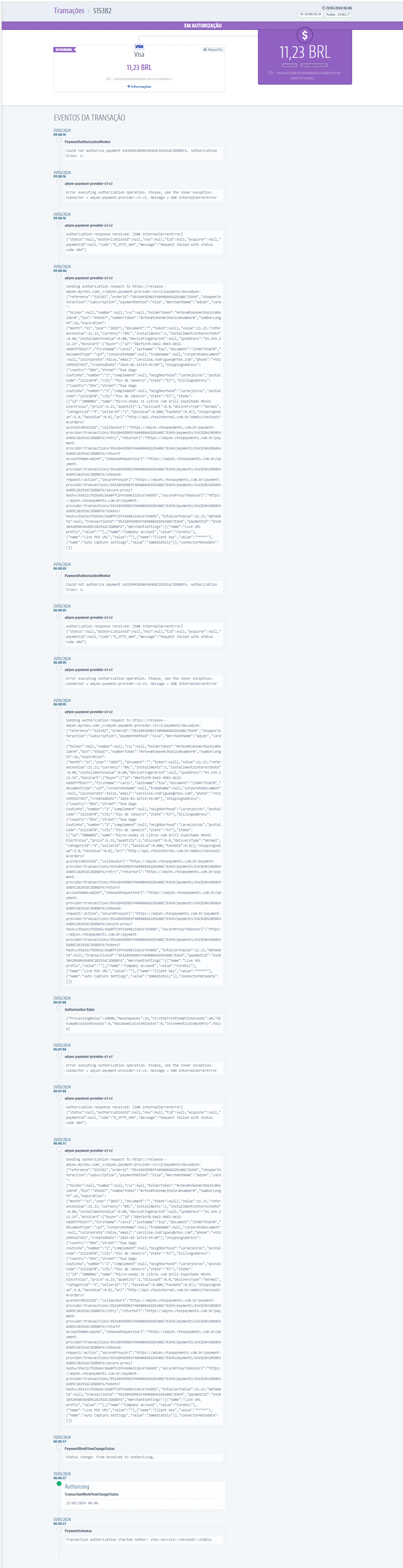
- At the top of the page, you can see the Payment Information:
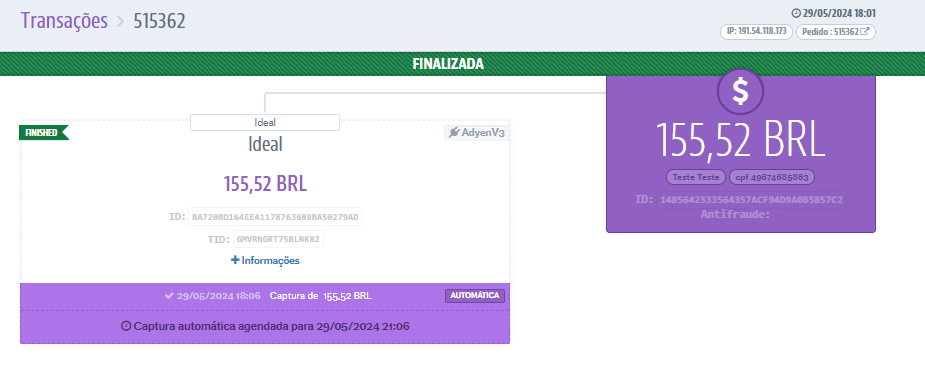
IMPORTANT: When a payment is Authorized, you can see the TID, which is the ID in the Adyen system for that transaction. In Adyen the TID is referred as PSP Reference and you can search for this ID to check the transaction details at
https://{{account}}.adyen.com/ca/ca/offers/showList.shtml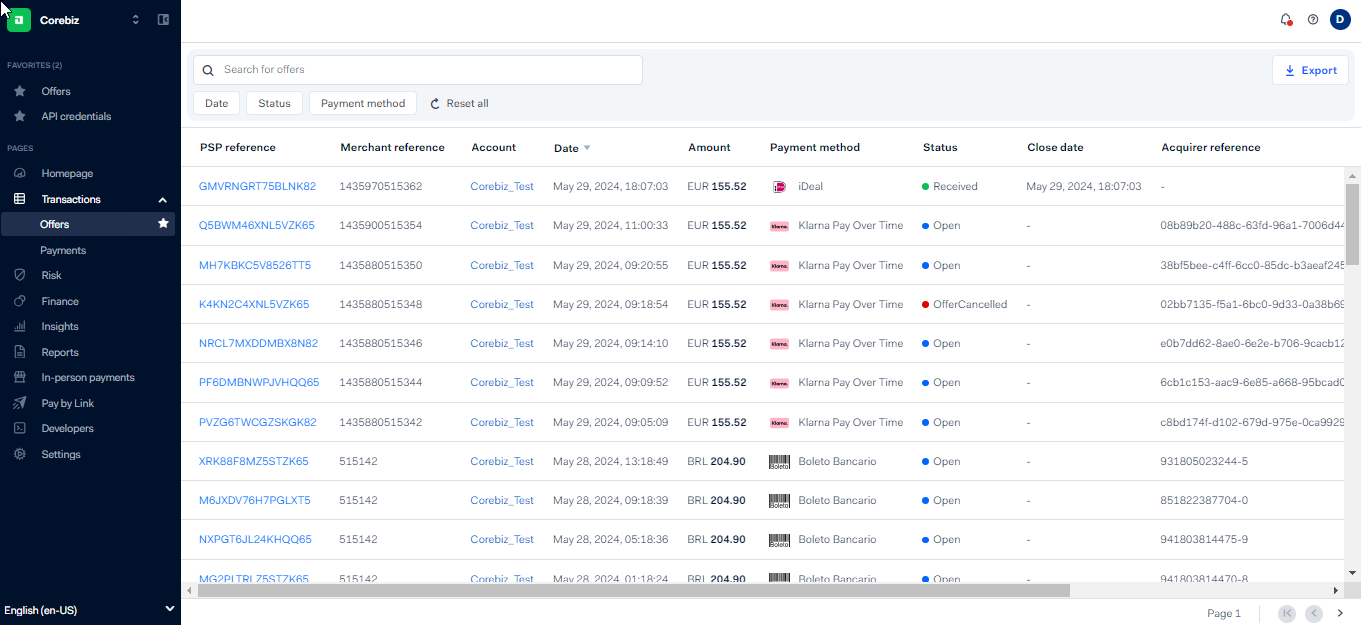
- At the top of the page, you can see the Payment Information:
Was this page helpful?