API Key
API Credential Configuration
Generate and configure your API key as described in the Adyen Platforms Documentation. Ensure that you store your API key securely and use it for authenticating requests from VTEX to Adyen.
- In your Adyen Customer Area, in the sidebar menu click on Developers and, then, click API credentials;
- Click on the button Create new credential on the right side of the screen;
- Select Web service user
- It will open a pop up with General Settings:
- Credential Type
- Username: This is your Adyen Web Service User. Store this ID as you will need it to open a ticket to Adyen later (e.g.,
ws_123456@Company.YourCompany). - Description: A description for the API key
- Username: This is your Adyen Web Service User. Store this ID as you will need it to open a ticket to Adyen later (e.g.,
- Credential Type
- Under Server Settings, in the Authentication area, select API Key and then click on the Generate API Key button to create a new key and store this information safely.
- Under Client Settings, in the Authentication area, select Client Key and click on the Generate Client Key button.
Additional Configurations
- Add allowed origin: Add all domains that will make client-side requests to Adyen. This includes your VTEX environment and your store's production domain. You must add each domain separately.
- Example (VTEX Environment):
https://{{account}}.myvtex.com - Example (Production Domain):
https://www.yourstore.com
- Example (VTEX Environment):
- Permissions: It is recommended to select all available permissions for the Web Service User to ensure full functionality and avoid potential issues with new features or payment methods.
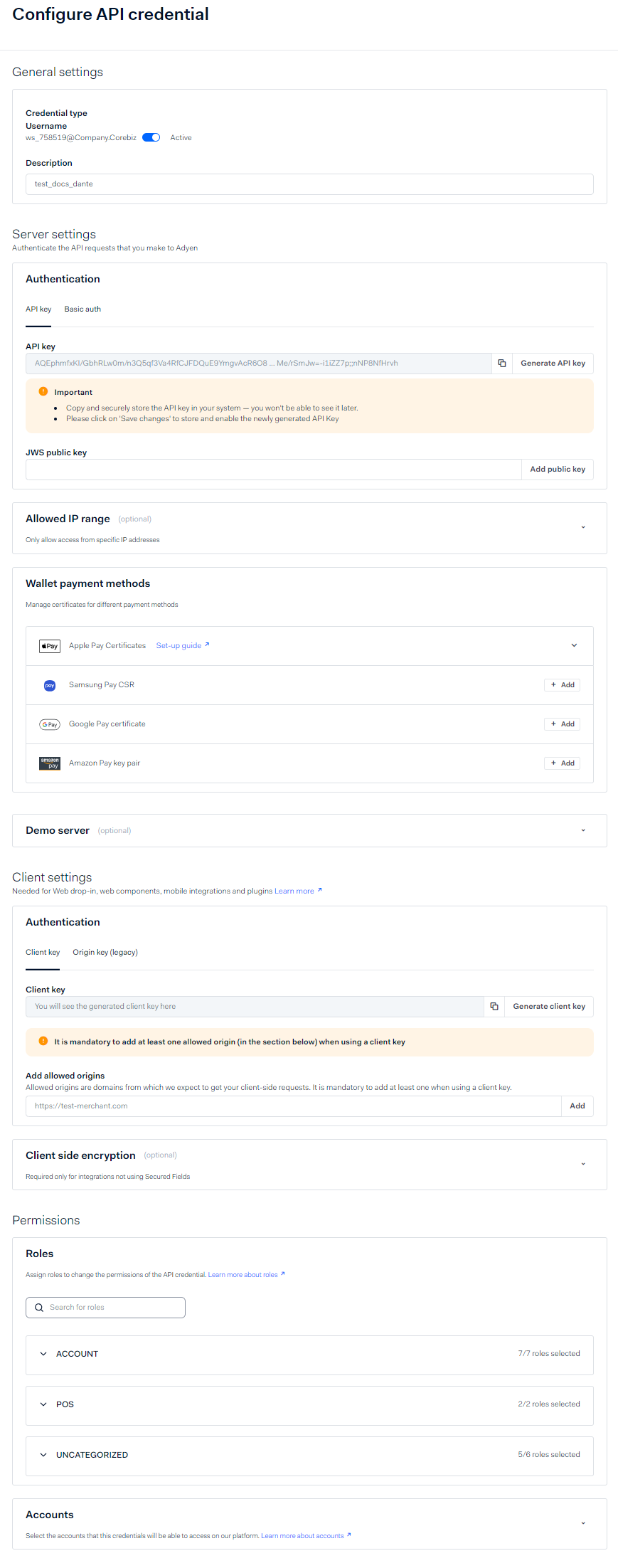
- After configuring all settings for the new credential, scroll to the bottom of the page and click Save.
Important: Failing to save the changes after creating the credential will result in authentication errors (Error 401). Always ensure you save the new credential before proceeding. After saving, it is recommended to reopen the credential settings to confirm that all changes have been persisted correctly.
Was this page helpful?