
Apple Pay
Digital wallets, CardsApple Pay is the digital wallet of choice for millions of iOS users
Set up Apple Pay in the Adyen Customer Area
Also you will need to set up Apple Pay in your Adyen Customer Area in Payment Methods. To do that, follow the steps below:
- In your Adyen Customer Area, go to Settings.
- Click on Payment Methods.
- On the right side, click on Request Payment Method.
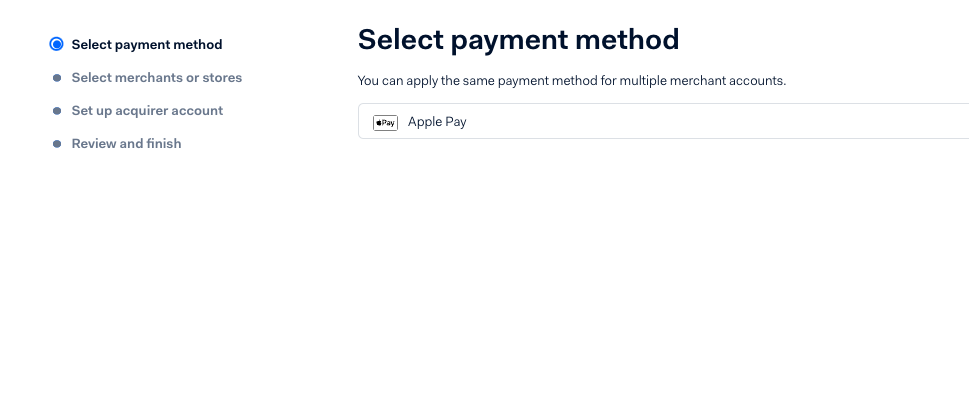
- In the Select Payment Method screen, select Apple Pay.
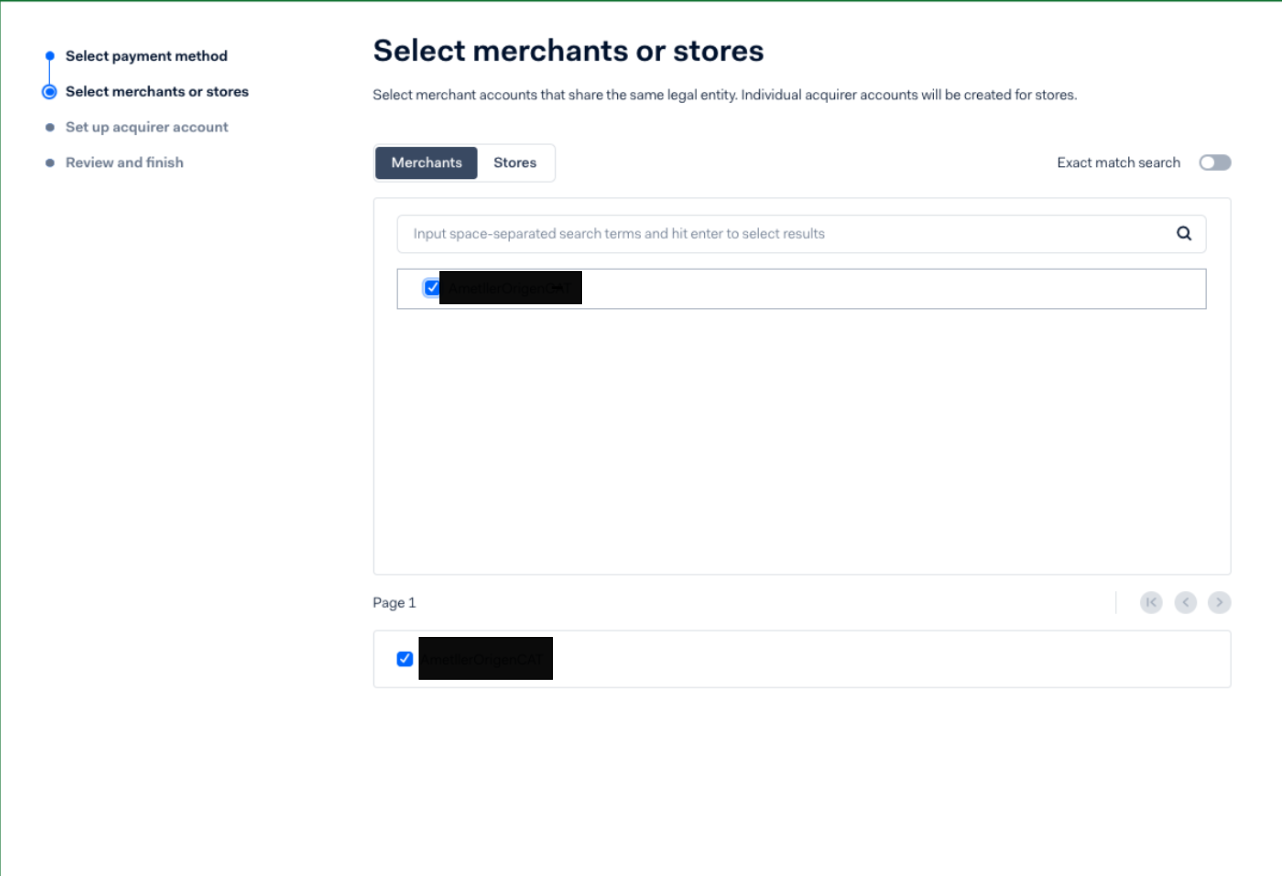
- Select the Merchant.
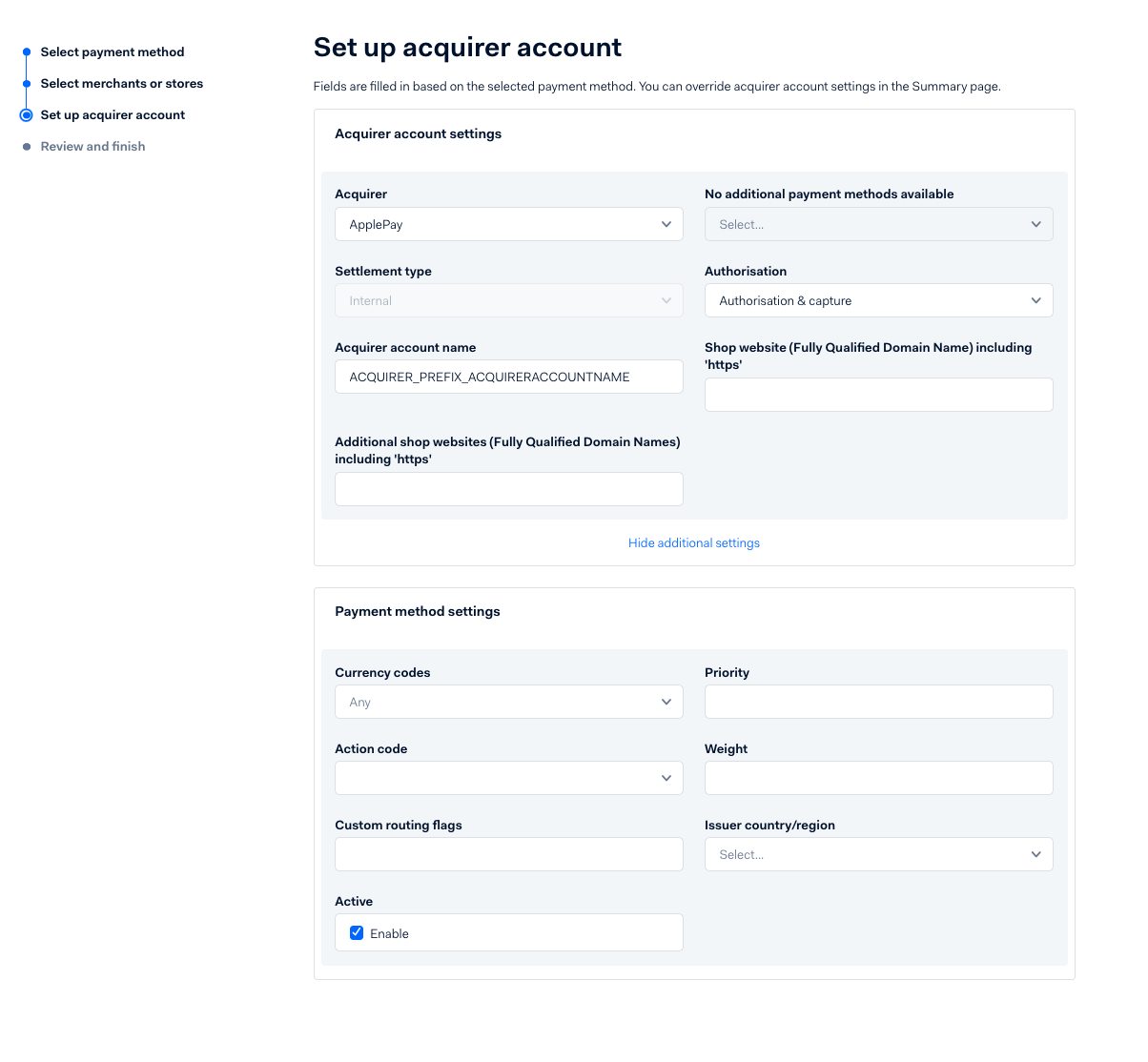
- Set up the acquirer account.
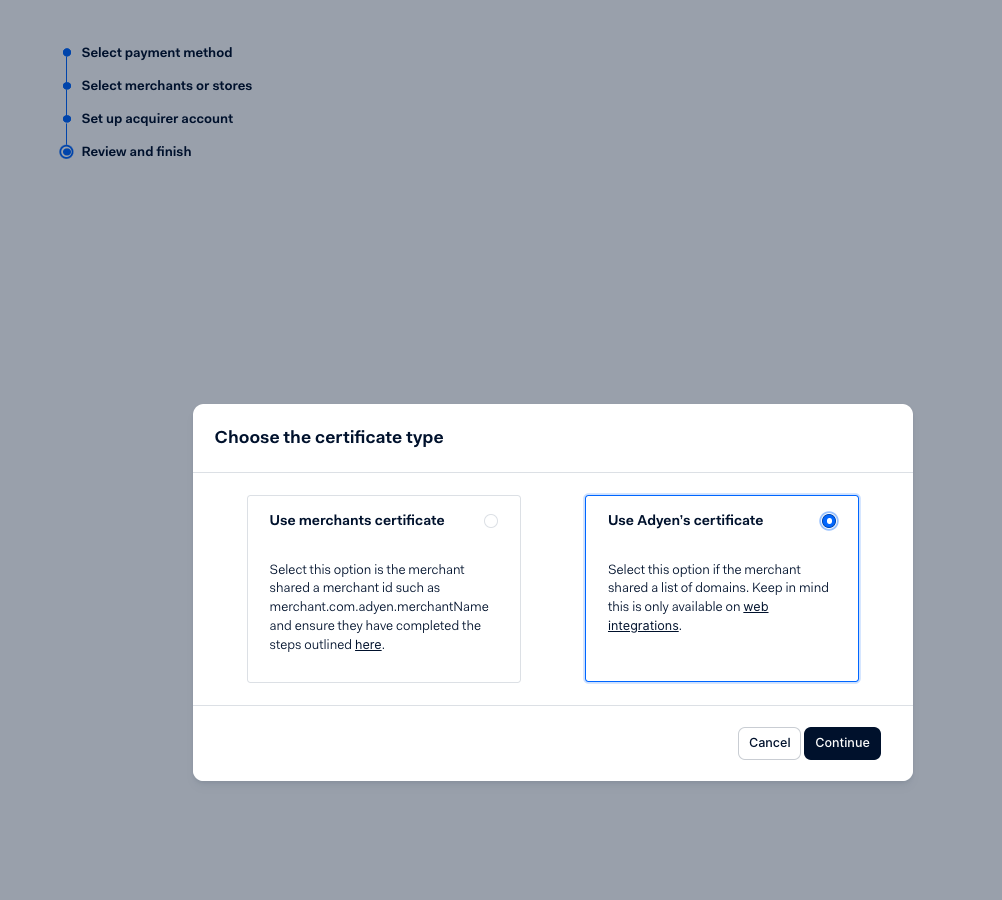
- Select the certificate type: Use Adyen Certificate.
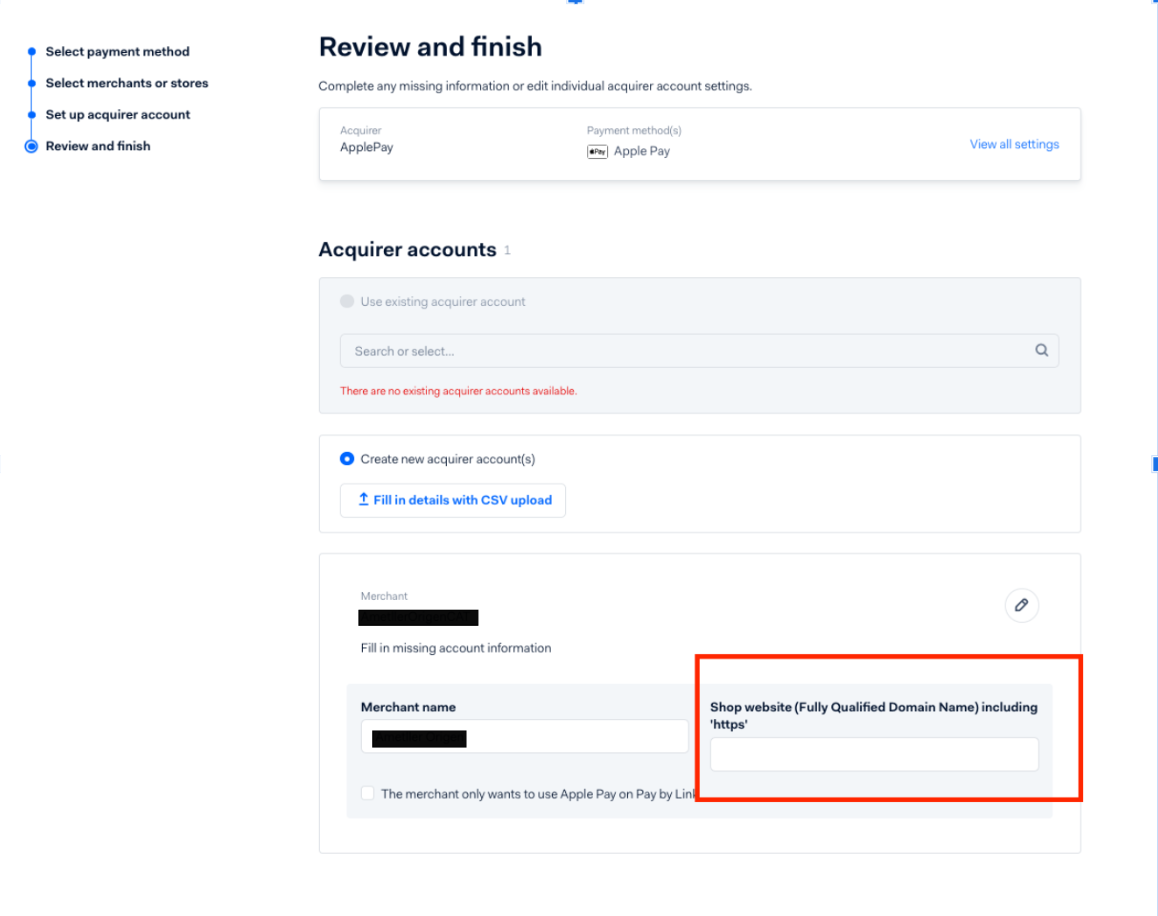
- In the Review and Finish screen, insert the full website domain.
Validate the configuration
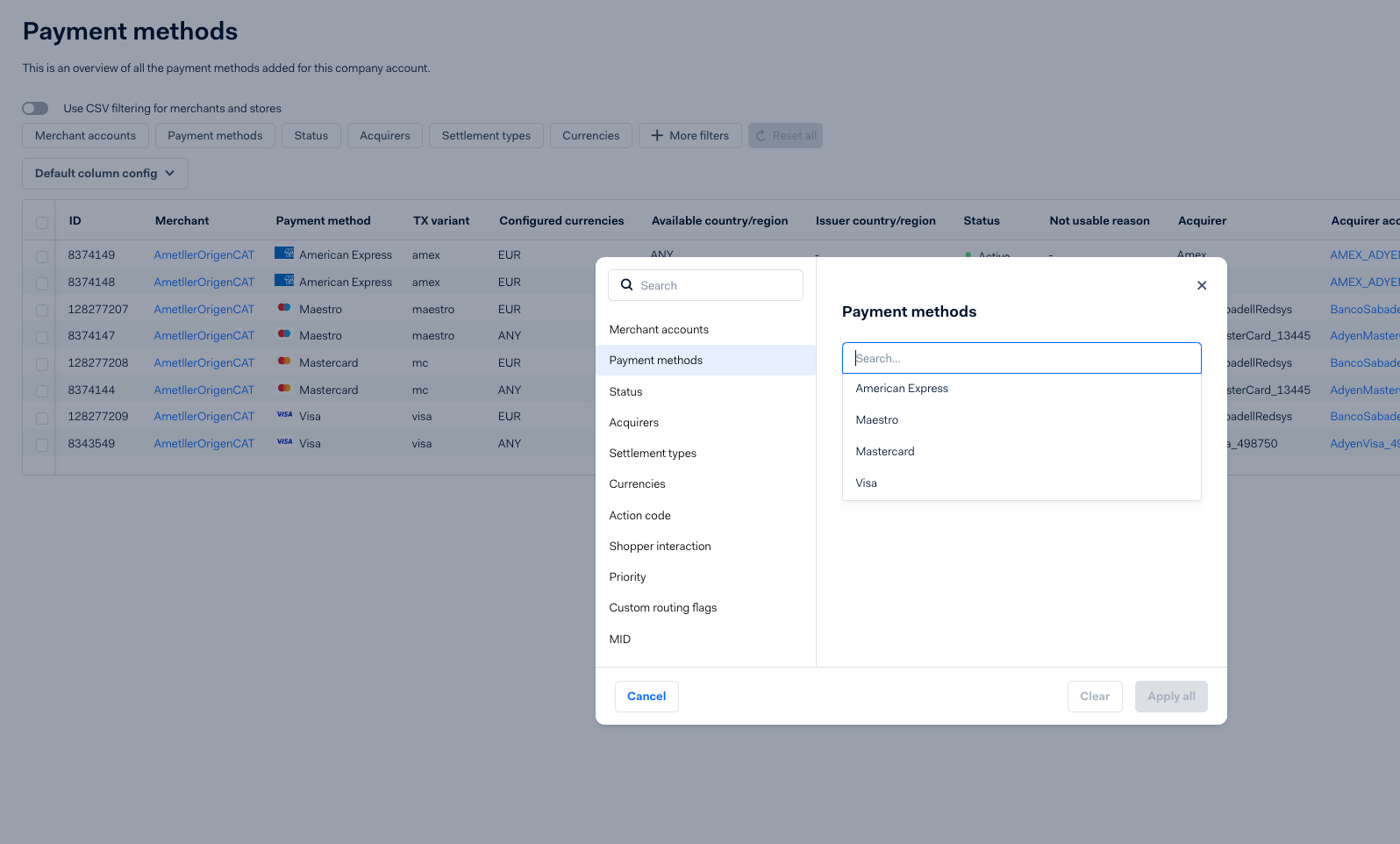
If the setup is correct, you should see Apple Pay when you search for it in the Payment Methods screen.
Install the certificate
-
Generate your certificate following the documentation. To generate the certificate, please refer to the following documentation: Apple Pay Component | Adyen Docs
-
Install the certificate into the VTEX server. To do that, do a POST using Postman or similar tool to the following endpoint:
https://{{PublicStoreDomain}}/.well-known/raw/apple-developer-merchantid-domain-association?persistent=true

- Check if the certificate was correctly installed. To check if the certificate was correctly installed into VTEX servers, use the following url:
https://{{PublicStoreDomain}}/.well-known/apple-developer-merchantid-domain-association
Business Rules
Payment Flow
- The customer selects Apple Pay as the payment method at checkout.
- The app displays the customer's available cards.
- The customer authenticates the transaction via Face ID, Touch ID, or passcode.
- The payment follows the rules of the selected card (credit or debit).
- Adyen confirms the transaction and sends a webhook to the connector.
- The connector approves the payment and updates VTEX.
Specific Rules
- Installments: Available only for credit cards.
- Authentication: All transactions require biometric or passcode authentication for added security.
Was this page helpful?