
Google Pay
Digital wallets, CardsGoogle Pay™️ lets millions of people add payment cards to their Google Accounts
Set up Google Pay in the Adyen Customer Area
You will need to set up Google Pay in your Adyen Customer Area in Payment Methods. To do that, follow the steps below:
Request activation
- In your Customer Area, switch to your merchant account.
- Go to Settings > Payment methods.
- Select Request payment methods to view all available payment methods.
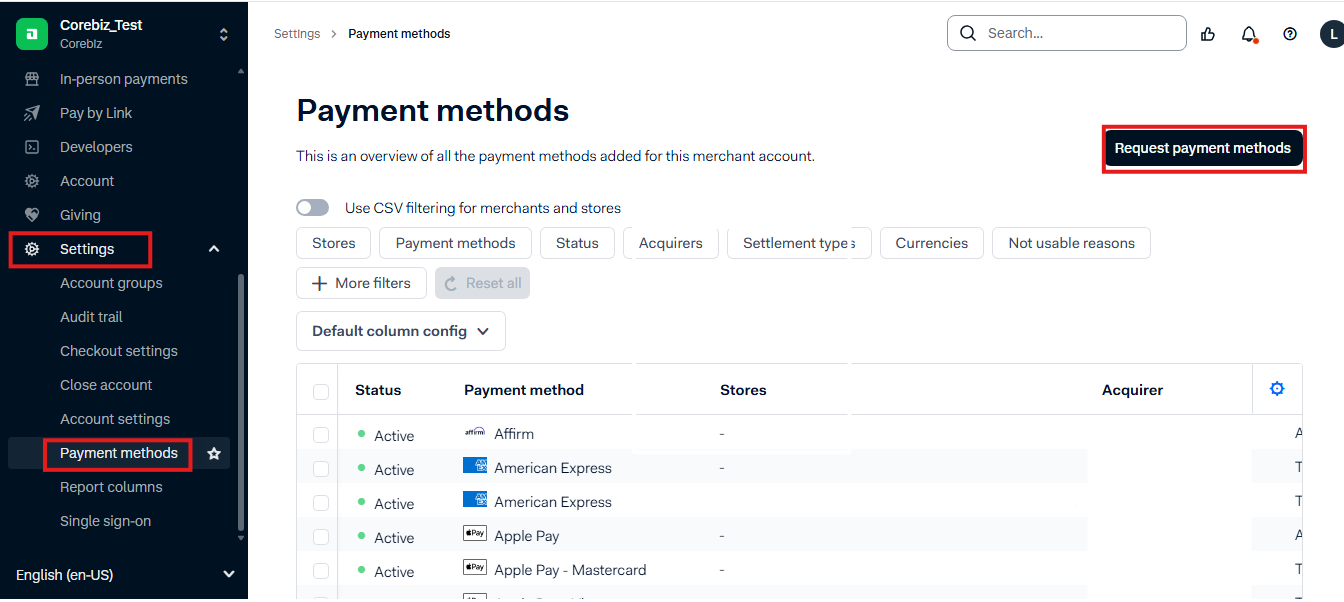
- Use the dropdown lists to filter payment methods by location and type.
- Select the Google Pay (paywithgoogle) payment method.
- Select Add.
- Apply the payment method(s) to This merchant account.
- If prompted, fill in the required information.
- Review your requests.
- Select Submit request.
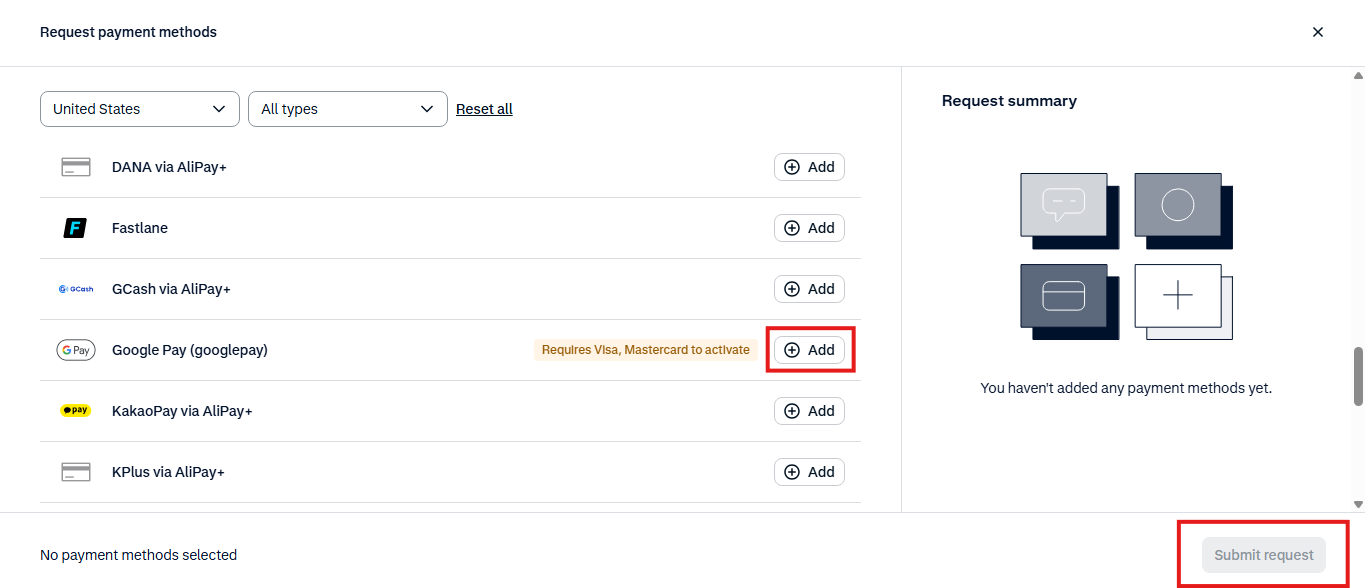
More info: Add payment methods | Adyen Docs
Information: If the Google Pay (paywithgoogle) payment method is not active on your account, please contact support@adyen.com to request access.
Validate configuration
After activation, check:
- Google Pay (paywithgoogle) is available in your account’s payment methods.
- Merchant Account is correctly configured.
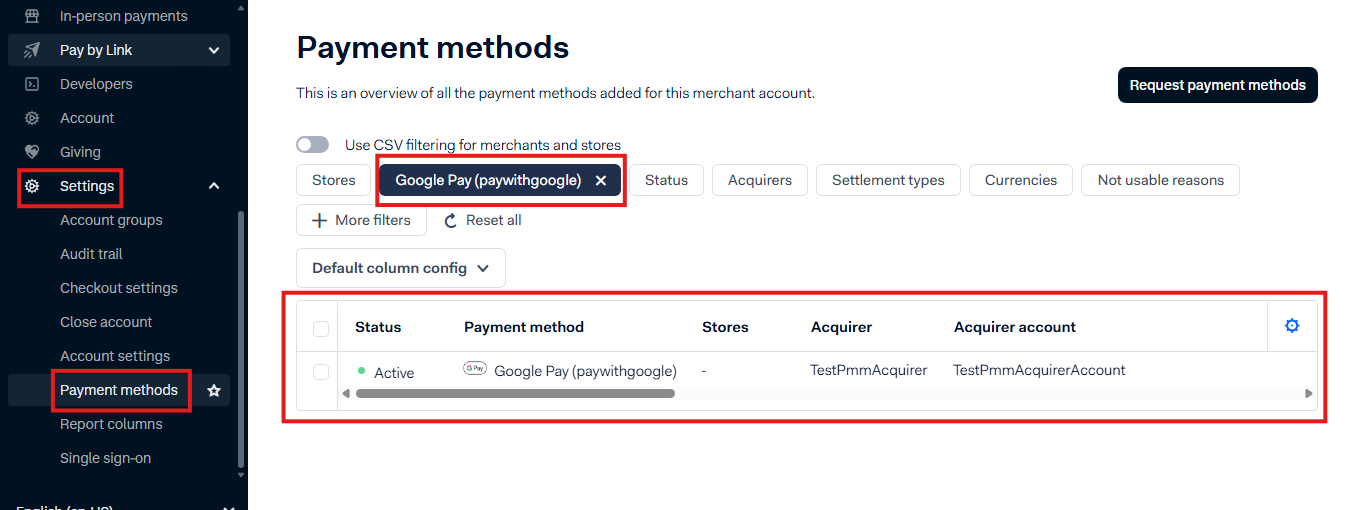
Warning: Only one Google configuration option can be active at a time. If both are enabled, googlepay will be used by default, and paywithgoogle will only appear if it is not active.
Configure Google Pay in VTEX Admin
Access Wallet
- In the VTEX Admin, go to Store Settings > Payments > Wallets or type Wallets in the search bar at the top of the page.
- Select Activate to include the Google Pay extension.
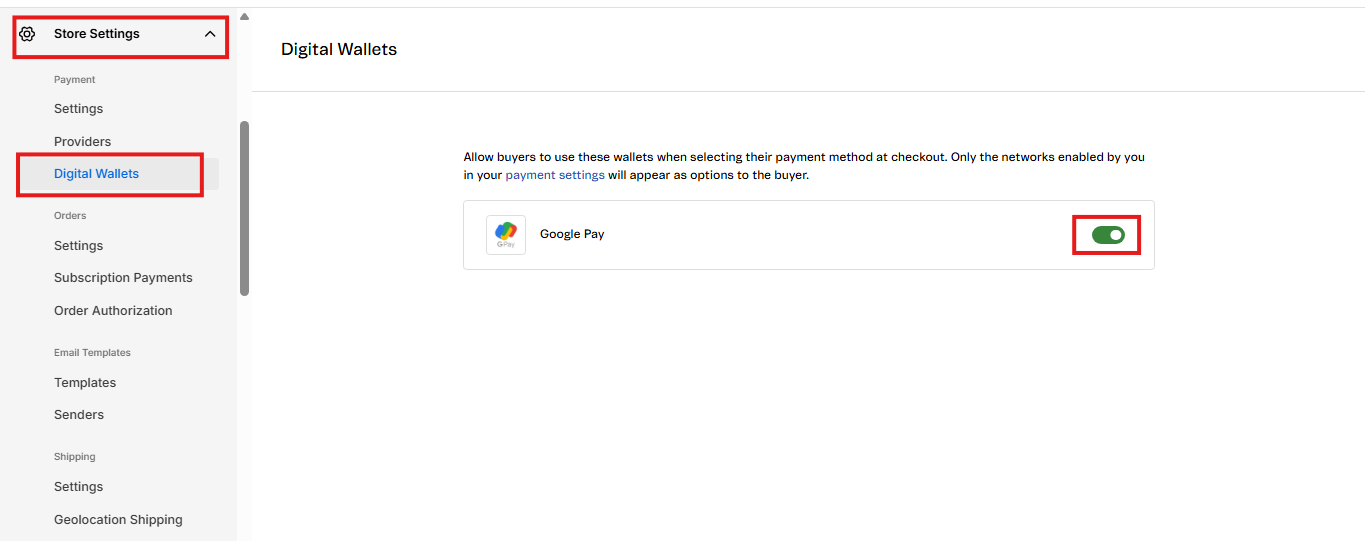
The card brands supported by the Google Pay extension are those configured in the payment conditions.
More info: Google Pay | VTEX Help
Display conditions
Google Pay will only appear at checkout when:
- The device is compatible (Android or supported browser).
- The user has a Google account with a card configured.
- The wallet is active in VTEX.
Business Rules
Payment Flow
- The customer selects Google Pay at checkout.
- The customer selects the desired card from their Google Wallet.
- The customer authenticates if required (e.g., via biometrics or device PIN).
- The transaction is processed through Adyen.
- Adyen confirms the transaction and sends a webhook to the connector.
- The connector approves the payment and updates VTEX.
Specific Rules
- Installments: Available only for credit cards.
- Production Requirements: In production, a Numeric Merchant ID from Google is required to avoid integration errors.
Was this page helpful?